Agent design
Agents operate alongside people in Slack, joining conversations, taking actions, and surfacing information. That proximity comes with responsibility. This guide covers the design tenets that help agents earn trust: showing up transparently, respecting data boundaries, and balancing autonomy with appropriate guardrails.
How agents show up in Slack
Users should never have to question whether they are interacting with a human or an automated system. When an agent acts on a user's behalf, signal it clearly. This preserves trust and helps users understand what is human and what is automated.
Agents should also respect data boundaries. Slack uses DMs, private channels, and public channels to ensure users understand where their conversation data is visible. An agent must follow this same model.
- An agent shouldn't be able to read, access, or use information that the invoking user wouldn't be able to access on their own.
- If the invoking user can't open a file (canvas, list, Salesforce record, etc.) normally, the agent shouldn't use it for context or to generate information.
- Huddles follow the same sharing model. Transcripts, meeting summaries, and notes should not be used for generating responses in an agent conversation if the user can't access them.
The sections below cover how to put these principles into practice, from how your agent first appears to how it handles errors.
Agent discovery
Agent naming and appearance
First and foremost, users should not have to question whether they are talking to a human or an automated system. Your agent's name, avatar, and description are the first things users see. They should immediately signal what the agent does and that it's AI-powered, not a person.
-
Lead with function, not personality. Names like "Recruit Assistant" or "Deal Desk" tell users what the agent does at a glance. Human-first names can blur the line between person and agent.
-
Choose an avatar that is distinguishable and appropriate. It should be clearly non-human, and match its purpose.
-
Write a description that states what the agent does, not what it is. "Creates issues from Slack threads" is better than "An AI-powered project management assistant."
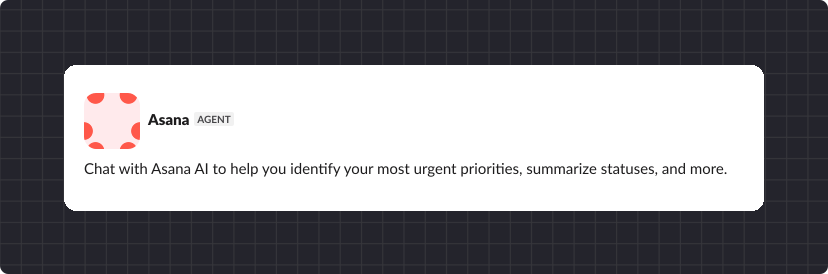
Asana's description says what it does and makes clear this is Asana AI, not a person.
First-time use and suggested prompts
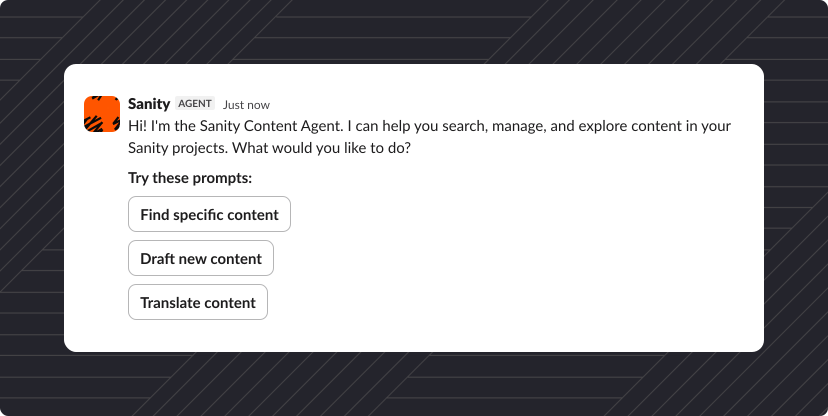
Users often don't know where to start with a new agent. Suggested prompts are an intuitive way to show what your agent can do quickly.
- Offer 2–4 suggested prompts that represent the agent's core use cases. These should be real, actionable prompts.
- Make prompts contextual where possible. A prompt that references the user's current channel or recent activity feels more relevant than a generic starter.
- Keep prompts short and specific. "Pull up the latest pipeline" is better than "You can ask me to help with your sales data."
- Consider ongoing education, not just first-run prompts. Rotating tips or contextual hints help users discover features over time.
Learn how to implement suggested prompts in the Developing an agent guide.
Interactions
Status messages
Agents are powerful and do a lot of work behind the scenes. Users should know that something is happening without being overwhelmed with information. Don't leave users wondering if your agent is still running. Status updates are a standardized way to tell whether the agent is working, stuck, or done. Learn how to set status in Developing an agent.
- Show a status indicator immediately after the user sends a message. This can range from a lightweight emoji reaction to a "Working on it..." status.
- Update the status as the agent progresses. "Searching your workspace..." → "Found 3 matching issues..." → "Formatting results..." This gives users a sense of progress.
- Keep status messages brief. They should be glanceable, not paragraphs. Summarize rather than narrate, and provide links and sources for supporting information.
- For simple acknowledgments, a lightweight signal like an emoji reaction can confirm the agent saw a message without adding noise.
Planning block and task updates
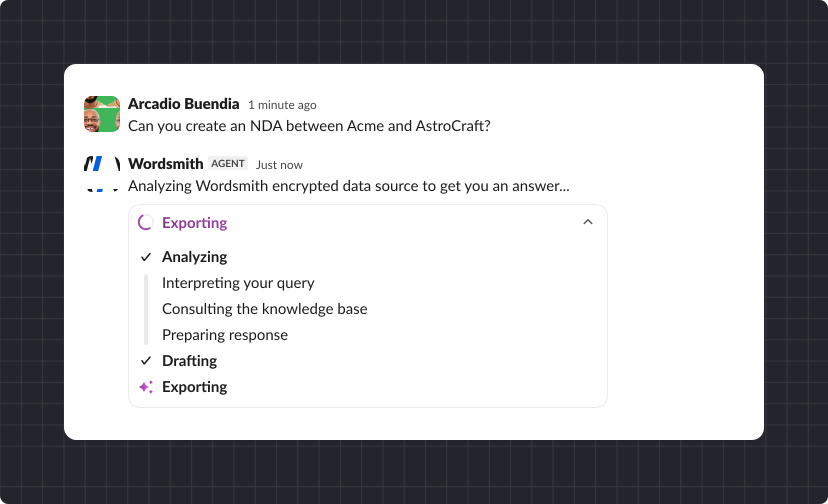
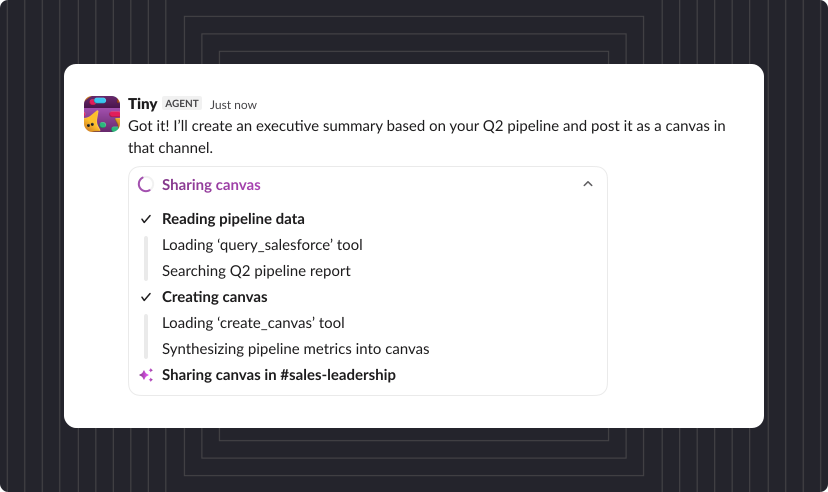
Show users what your agent is actively working on and where it is in the process. By giving users a record of what the agent did, they can understand if something doesn't look right and investigate why something went wrong. Learn how to implement plan blocks and task updates in Developing an agent.
- Multi-step tasks use plan blocks to show a list of steps where the agent is making decisions, not just fetching data.
- Keep each step to one short phrase. "Reading thread context" and "Identifying action items" are good. A paragraph explaining reasoning is too much.
- Make plan blocks collapsible or visually secondary to the final output.
- Use task updates for simple tasks, instead of a full plan block. Use plan blocks selectively for multi-step work.
Streaming responses
Deliver your agent's output in real time so users can start reading immediately. Streaming makes the wait feel shorter, and if the direction is off, users can pause and redirect the task before the agent finishes. Learn more about text streaming in Developing an agent.
- Stream long-form responses like summaries, drafts, and analysis. For short and structured responses (e.g., a confirmation or a link), deliver the complete message at once.
- Make sure partial output is coherent and readable mid-flow. Avoid streaming structured data (tables, lists) that looks broken until complete.
Tool call visibility
When your agent accesses external systems, users should be able to see what's happening. This also helps users understand what the agent has access to.
- Name the external system in plain language. "Looking up your calendar" not "Calling
events.listAPI endpoint." - Surface write actions (e.g. creates, sends, deletes) so users can follow the chain of actions. Read-only lookups can be shown more subtly or grouped.
- Show tool calls inline with thinking steps so users see a coherent sequence: "Reading thread..." → "Checking Linear for existing issues..." → "Creating issue..."
Confirmation and control
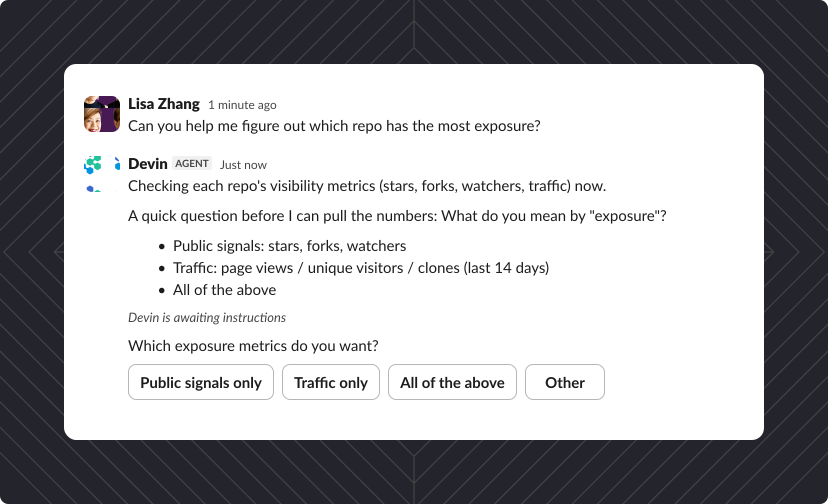
There are moments when your agent should pause and ask for guidance before proceeding. This ranges from low-stakes decision points (clarifying ambiguity) to high-stakes approval gates (confirming irreversible actions). This is the primary way users stay in control, which builds confidence in an agent. To learn more about progressive trust and guardrails, see Governance and trust.
- When an agent doesn't have enough information and there's ambiguity or multiple valid paths to proceed, present options rather than guessing. Use interactive Block Kit elements (e.g. buttons, menus) and provide brief context with each option.
- When taking an action that has real-world implications like creating, sending, or deleting content, an agent should require explicit confirmation. Show a preview of what the agent plans to do and offer ways to approve, modify, or reject.
- Be cautious, asking for confirmation on every action creates fatigue and trains users to click through without reading. Save confirmation for moments that actually need it.
Context
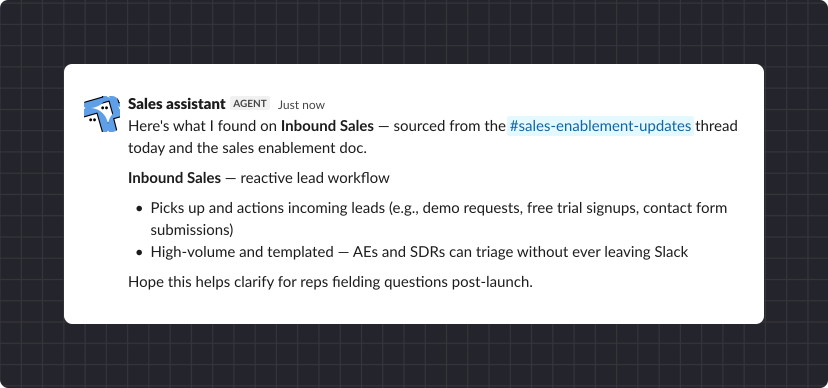
Users gain confidence in an agent when they can understand the context the agent has access to. If they can't see the context, they can't tell if a response is complete or relevant. For more on how to gather and structure context, see Context management.
- Reference the source of context in responses. "Based on this thread..." or "From your workspace..." helps users understand where information came from.
- If the agent is missing the context it needs, say so. "I can only see this channel. Do you want me to also check #engineering?" is better than silently giving an incomplete answer.
- In channels, be audience-aware. The agent may have context from a DM or another channel that isn't appropriate to surface publicly.
Responses in conversations and notifications
How and when the agent responds matters. This is especially true in channels, where noise is a top concern for teams. Learn more about responding and sending notifications in Developing an agent.
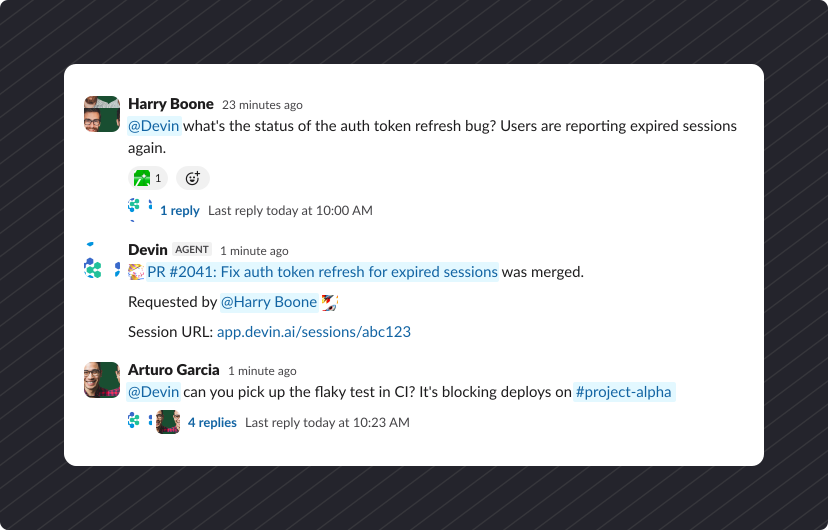
- Agent responses should be made in threads. This prevents flooding the main conversation.
- Organize related notifications into batches. Five issue updates should be one message, not five.
- Responses in DM and channels should behave differently and be appropriate to the expectations of these different spaces. DMs can be more conversational but responses in channels should be minimal and added as threads to reduce unnecessary notifications. If the agent is sharing private information, send it only through DMs, private channels, or ephemeral messages.
Task completion
Task recap
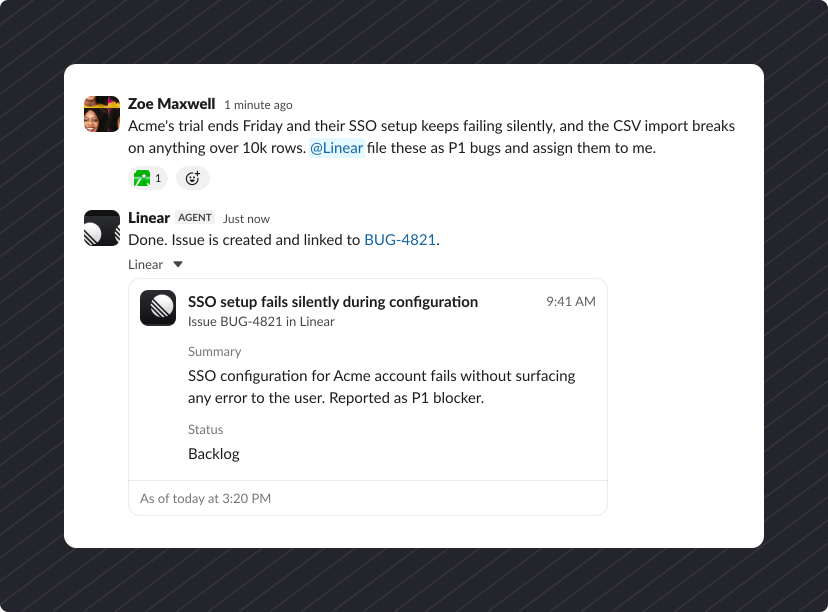
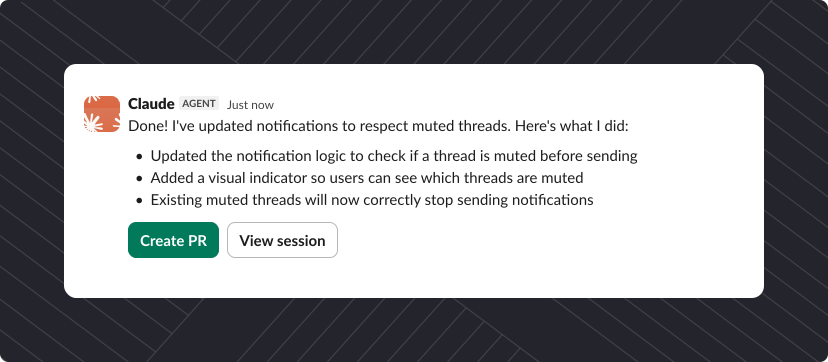
When your agent finishes a task, give users a clear summary of what happened, including what was skipped and why. Users should be able to verify the outcome without retracing every step.
- Include direct links to any content that has been created or modified so users can continue in their flow of work.
- Clearly identify any steps that were skipped and provide a reason. "I couldn't assign this to @maxzoe because they're not a member of the project" is better than silently leaving a field blank.
- Keep recaps shorter than the original task. A two-paragraph recap for a one-click action is unnecessary.
Taking actions on behalf of a user
If your agent takes action using someone's identity, that should always be visible and reviewable. Users need to know when an agent acts as them, and they need a way to check what it did. You can read more about audit trails and permissions in Governance and trust.
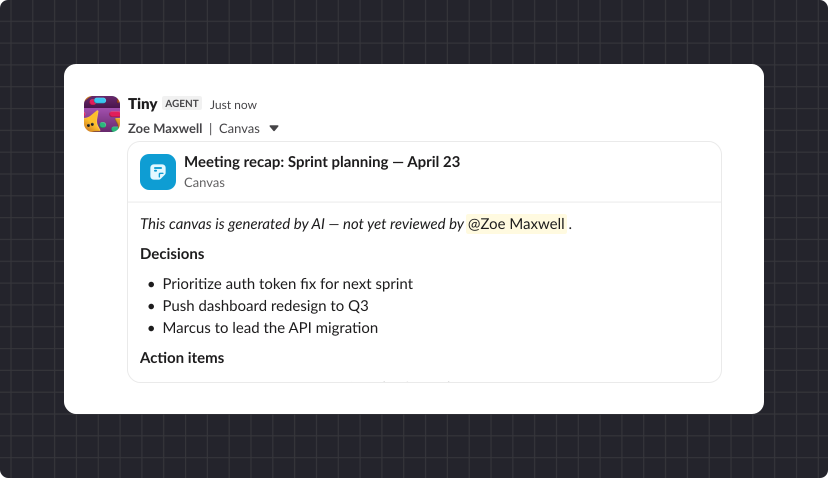
- Label actions clearly with "on behalf of [user]" so recipients know a human authorized the action but an agent performed it.
- When the agent creates content autonomously without the user reviewing it first, include a visible indicator that the content is AI-generated and hasn't been reviewed.
- Give users a review surface in the App Home so they can see what the agent has done on their behalf, especially for async or bulk actions.
Errors and recovery
Graceful failure messages
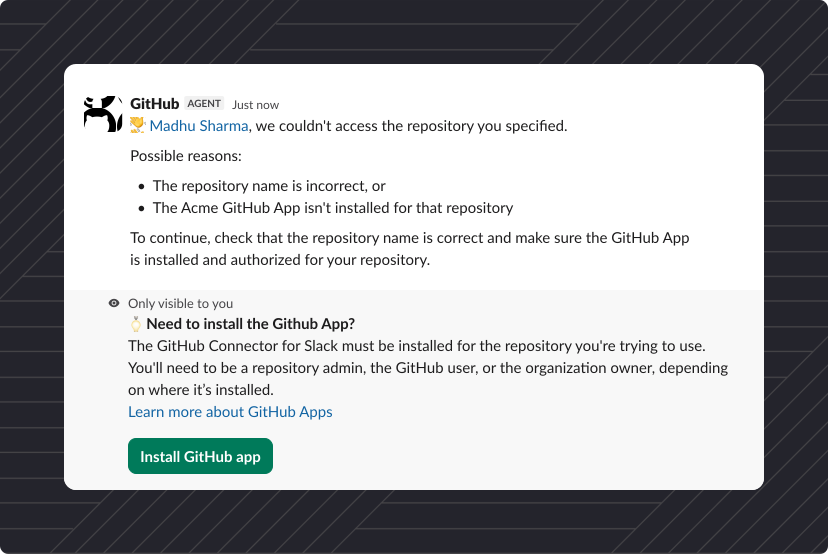
When something goes wrong mid-task, preserve completed work and give users clear options for how to move forward. Try to avoid providing an error message with no clear next steps. Read more about graceful errors in Developing an agent.
- Preserve and report partial progress. If the agent completed 3 of 5 steps before failing don't discard the work and let the user know what has successfully been completed.
- Offer 2–3 clear next steps: retry, modify the request, or escalate. Don't leave the user with just "Something went wrong."
- Use a calm, helpful tone. The agent broke, not the user.
Limitation errors and messaging
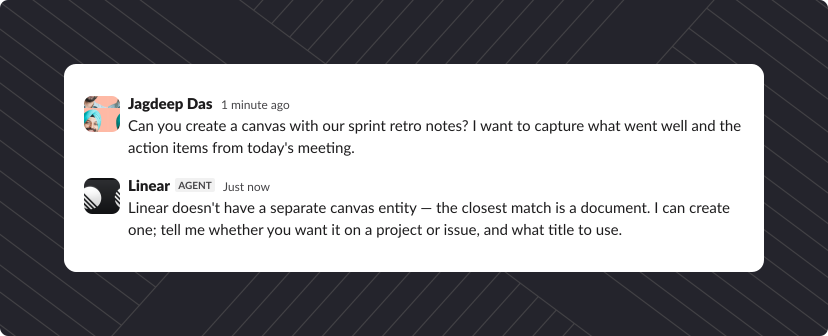
When an agent can't complete a task because of a limit that's been set on access or permissions, treat this differently than a typical error message. The messaging should clearly describe what your agent can't do and why. Be direct and provide useful information.
- Be specific about the agent's limitation and what permission may be impacting access. "I don't have access to Project Beta" is actionable. Avoid vague messaging like "I can't help with that".
- Suggest an alternative whenever possible. If the agent can't do exactly what was asked, offer the closest thing it can do.
- Distinguish capability limits from transient errors. "I'll never be able to delete issues" is different from "Agent is temporarily unavailable."
Bounded autonomy
An advantage of agents is their autonomy. If you're overly cautious and provide too many constraints, you may limit the capabilities and value that an agent can provide. In contrast, giving an agent too much autonomy and access may risk exposing sensitive data or taking inappropriate actions.
Bounded autonomy allows for a balance. Developers give the agent a goal and the freedom to figure out how to achieve it, but also set clear boundaries around what it can and cannot do without asking. It's possible for agents to be given access and autonomy as they earn trust and are able to perform tasks and deliver high quality responses consistently over time.
Build strong defaults with flexibility over time. Restrict default settings so it can build capabilities over time.
Final note
Agent experiences on Slack, and on every platform, are moving fast. These guidelines reflect where things stand today. Some newer interaction patterns like ambient agents and agent-to-agent handoffs are still being defined and under exploration. Think of this as a living document.