Developing an agent
Don't have a paid plan? Join the Developer Program and provision a fully-featured sandbox for free.
This guide takes you through developing the response loop of an agent. The response loop is a cycle of receive input → reason → call tools → stream/render output. For a summary of the features offered for Slack agents, reference the Agent design guide.
Enabling the agent feature
First things first: follow the Quickstart guide to create an agent.
Once completed, review the features added in the app settings, including the Agents feature in the sidebar and several scopes. Take note of the assistant:write scope. It allows your agent to take advantage of certain agent features like setting the status, suggested prompts, and thread title.
Subscribe to events
The quickstart template added some event subscriptions, but you should ensure the following are also added to your agent: app_context_changed, agent_session_stopped, and agent_session_title_changed events. You can do this by navigating to the Event Subscriptions menu tab of the app settings, finding Subscribe to bot events, and adding them there.
Handling initial user interaction
Receiving input is the first step of the agent response loop. Make users aware of the purpose of your agent by providing a welcome message and setting suggested prompts.
Onboarding and welcome message
Send a call to action when a user interacts with an agent for the very first time. This is especially important when it is necessary for the user to sign in, connect an account, agree to terms of service, or review a code of conduct.
Implementing user onboarding
We recommend using an interactive element or link if an action is needed or the user needs to visit a document or external URL.
For an app that requires the user complete a login flow to access all of the features, a first message could include a block that looks something like this:
{
    "type": "rich_text",
    "block_id": "Vrzsu",
    "elements": [
        {
            "type": "rich_text_quote",
            "elements": [
                {
                    "type": "text",
                    "text": "It looks like you're not logged. \n Sign in first."
                }
            ]
        }
    ]
},
{
    "type": "actions",
    "block_id": "actionblock789",
    "elements": [
        {
            "type": "button",
            "style": "primary",
            "text": {
                "type": "plain_text",
                "text": "Sign in"
            },
            "value": "sign_in_123"
        },
        {
            "type": "button",
            "style": "danger",
            "text": {
                "type": "plain_text",
                "text": "Ignore"
            }
        }
    ]
}
View this example in Block Kit Builder.
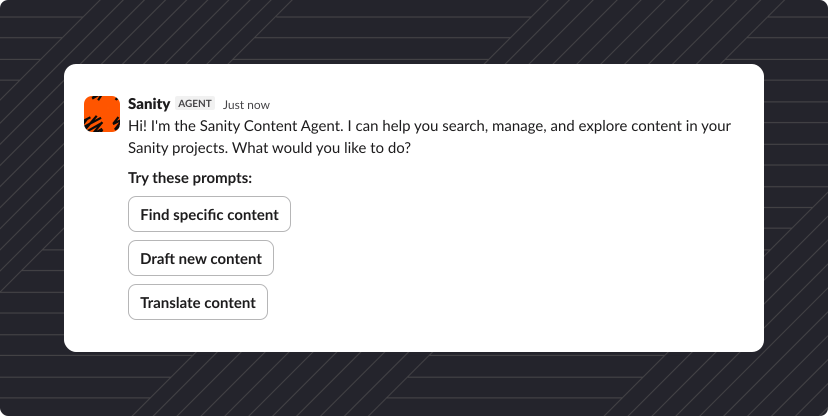
Setting suggested prompts
Present the user with suggested prompts using the assistant.threads.setSuggestedPrompts API method. Suggested prompts live at the top of the Messages tab. We recommend using the Bolt framework to handle the details for you.
- API call
- Bolt for Python
- Bolt for JavaScript
Here is a sample request for the API without using the Bolt framework. Refer to the method docs or full example below for more implementation details.
{
   "channel_id": "D123ABC456",
   "thread_ts": "1724264405.531769",
   "title": "Welcome. What can I do for you?",
   "prompts": [
         {
            "title": "Generate ideas",
            "message": "Pretend you are a marketing associate and you need new ideas for an enterprise productivity feature. Generate 10 ideas for a new feature launch.",
          },
          {
            "title": "Explain what Slack stands for",
            "message": "What does Slack stand for?",
          },
          {
            "title": "Describe how AI works",
            "message": "How does artificial intelligence work?",
          },
   ]
}
Use the Bolt for Python utility to set predetermined suggested prompts for the user to choose from. Refer to the Bolt for Python docs for more details.
assistant = Assistant()

@assistant.thread_started
def start_assistant_thread(
    say: Say,
    get_thread_context: GetThreadContext,
    set_suggested_prompts: SetSuggestedPrompts,
    logger: logging.Logger,
):
    try:
        say("How can I help you?")

        prompts: List[Dict[str, str]] = [
            {
                "title": "Suggest names for my Slack app",
                "message": "Can you suggest a few names for my Slack app? The app helps my teammates better organize information and plan priorities and action items.",
            },
        ]

        thread_context = get_thread_context()
        if thread_context is not None and thread_context.channel_id is not None:
            summarize_channel = {
                "title": "Summarize the referred channel",
                "message": "Can you generate a brief summary of the referred channel?",
            }
            prompts.append(summarize_channel)

        set_suggested_prompts(prompts=prompts)
    except Exception as e:
        logger.exception(f"Failed to handle an assistant_thread_started event: {e}", e)
        say(f":warning: Something went wrong! ({e})")
Use the Bolt for JavaScript utility to set predetermined suggested prompts for the user to choose from. Refer to the Bolt for JavaScript docs for more details.
...
threadStarted: async ({ event, logger, say, setSuggestedPrompts, saveThreadContext }) => {
    const { context } = event.assistant_thread;

    try {

      await say('Hi, how can I help?');

      await saveThreadContext();

      /**
       * Provide the user up to 4 optional, preset prompts to choose from.
       *
       * The first `title` prop is an optional label above the prompts that
       * defaults to 'Try these prompts:' if not provided.
       */
      if (!context.channel_id) {
        await setSuggestedPrompts({
          title: 'Start with this suggested prompt:',
          prompts: [
            {
              title: 'This is a suggested prompt',
              message:
                'When a user clicks a prompt, the resulting prompt message text ' +
                'can be passed directly to your LLM for processing.\n\n' +
                'Assistant, please create some helpful prompts I can provide to ' +
                'my users.',
            },
          ],
        });
      }

      if (context.channel_id) {
        await setSuggestedPrompts({
          title: 'Perform an action based on the channel',
          prompts: [
            {
              title: 'Summarize channel',
              message: 'Assistant, please summarize the activity in this channel!',
            },
          ],
        });
      }
    } catch (e) {
      logger.error(e);
    }
  },
...
Listening for the message.im event
To know when a user has actively opened a DM with your app, listen for the app_home_opened event and check that its tab property is "messages". To know when a user sends a message, listen for the message.im event. The message.im event is the same whether the user clicked the suggested prompt or typed it manually. Users can message your app via the split view container or in a DM.
After the user sends a new message, your app can respond to the user directly or it can respond in thread by providing the thread_ts parameter. Calling the agents.sessions.setStatus method with status: "processing" on that thread opens the thread to keep the conversation going. Only do this if you intend to reply in thread. (The legacy assistant.threads.setStatus method behaves the same way through the compatibility bridge.)
Using context in your interactions
When your app receives the thread_ts parameter, you can retrieve the conversation by using thread_ts as the unique identifier. This is useful if your app stores the long-lived context or the state of a thread.
You can also fetch previous thread messages using the conversations.replies method and choose which other messages from the conversation to include in the LLM prompt or your app logic.
You can engage with the user or ask them to use the container to converse with your app.
Providing a loading state
Your app should then call the agents.sessions.setStatus method with status: "processing" to display the loading indicator in the container. We recommend doing so immediately for the user's benefit.
Loading states indicate to your user that the app is working on a response. While a session is in processing, Slack shows a standard loading UX, along with a stop button if your app subscribes to the agent_session_stopped event. Custom loading messages are not supported by the agents.sessions.setStatus method.
We recommend using the Bolt framework to handle the details for you.
- API call
- Bolt for Python
- Bolt for JavaScript
Here is a sample request for the agents.sessions.setStatus API method without using the Bolt frameworks. View the full example below for more detail.
{
   "status": "processing",
   "channel_id": "D324567865",
   "thread_ts": "1724264405.531769"
}
Use the Bolt for Python setStatus utility to cycle through strings passed into a loading_messages array. Refer to the Bolt for Python docs for more details.
# This listener is invoked when the human user sends a reply in the assistant thread
@assistant.user_message
def respond_in_assistant_thread(
    client: WebClient,
    context: BoltContext,
    get_thread_context: GetThreadContext,
    logger: logging.Logger,
    payload: dict,
    say: Say,
    set_status: SetStatus,
):
    try:
        channel_id = payload["channel"]
        team_id = payload["team"]
        thread_ts = payload["thread_ts"]
        user_id = payload["user"]
        user_message = payload["text"]

	# Set your desired statuses here
        set_status(
            status="thinking...",
            loading_messages=[
                "Untangling the internet cables…",
                "Consulting the office goldfish…",
                "Convincing the AI to stop overthinking…",
            ],
        )
...
Use the Bolt for JavaScript setStatus utility to cycle through strings passed into a loading_messages array. Refer to the Bolt for JavaScript docs for more details.
...
const assistant = new Assistant({
  ...
  userMessage: async ({ client, context, logger, message, getThreadContext, say, setTitle, setStatus }) => {

    if (!('text' in message) || !('thread_ts' in message) || !message.text || !message.thread_ts) {
      return;
    }
    const { channel, thread_ts } = message;
    const { userId, teamId } = context;

    try {

      await setTitle(message.text);

      /**
       * Set the status of the Assistant to give the appearance of active processing.
       */
      await setStatus({
        status: 'thinking...',
        loading_messages: [
          'Teaching the hamsters to type faster…',
          'Untangling the internet cables…',
          'Consulting the office goldfish…',
          'Polishing up the response just for you…',
          'Convincing the AI to stop overthinking…',
        ],
      });
...
The legacy assistant.threads.setStatus method, which accepts a free-text status string and cycles through loading_messages, still works through the compatibility bridge. The Bolt utilities above wrap it.
Responding to the user
Once your app finishes its work, call the agents.sessions.setStatus method with status: "active" to clear the loading indicator and mark the session ready for the next prompt.
With the agents.sessions.setStatus method, the loading UX does not disappear automatically when your app posts a message. Set status: "active" when you finish, or the session stays in processing until it times out after one hour. (The legacy assistant.threads.setStatus method, cleared by passing an empty status string, still clears automatically through the compatibility bridge.)
Formulate a response, then use text streaming to respond.
Text streaming
Text streaming is handled by three different API methods: chat.startStream, chat.appendStream, and chat.stopStream. These allow the user to see the response from the LLM as a text stream, rather than a single block of text sent all at once, providing closer alignment with expected behavior from other major LLM tools.
When using text streaming, there are a couple of caveats to keep in mind. Blocks may be used in the chat.stopStream method, but not the chat.startStream or chat.appendStream method, in order to prevent having them broken up. Also, unfurling is disabled in streaming messages.
Bolt for JavaScript and Bolt for Python have a streamer utility to implement these API methods.
- API call
- Bolt for Python
- Bolt for JavaScript
Below is a sample of these API method requests. Refer to the method docs linked above for more implementation details.
Initiate a new streaming method with the chat.startStream API method. Use task_display_mode to control how tasks appear:
{
  "channel": "D12345678",
  "thread_ts": "1503435956.000248",
  "task_display_mode": "plan",
  "chunks": [
    {
      "type": "markdown_text",
      "markdown_text": "Let me help you with that!"
    }
  ]
}
Append chunks progressively to an existing streaming message with the chat.appendStream API method:
{
  "channel": "D12345678",
  "message_ts": "1503435956.000247",
  "thread_ts": "1503435956.000248",
  "chunks": [
    {
      "type": "markdown_text",
      "markdown_text": "Here's what I found..."
    },
    {
      "type": "task_update",
      "task": {
        "task_id": "task_1",
        "title": "Fetching weather data",
        "status": "complete",
        "output": {
          "type": "rich_text",
          "elements": [
            {
              "type": "rich_text_section",
              "elements": [
                {
                  "type": "text",
                  "text": "Found weather data from 1 source"
                }
              ]
            }
          ]
        },
        "sources": [
          {
            "type": "url",
            "url": "https://weather.com/",
            "text": "weather.com"
          }
        ]
      }
    }
  ]
}
Close the stream with the chat.stopStream API method:
{
  "channel": "D12345678",
  "message_ts": "1503435956.000247",
  "thread_ts": "1503435956.000248",
  "chunks": [
    {
      "type": "markdown_text",
      "markdown_text": "Hope this helps!"
    }
  ]
}
Use the Bolt for Python say_stream utility to streamline (pun intended) all three API methods for streaming your app's messages. Refer to the Bolt for Python docs for more details.
from slack_bolt import SayStream

def handle_message(say_stream: SayStream):
    """Stream a response to a message."""
    streamer = say_stream()
    streamer.append(markdown_text="Here's my response...")
    streamer.append(markdown_text="And here's more...")
    streamer.stop()
Use the Bolt for JavaScript say_stream utility to streamline (pun intended) all three API methods for streaming your app's messages. Refer to the Bolt for JavaScript docs for more details.
app.message('*', async ({ sayStream }) => {
  const stream = sayStream();
  await stream.append({ markdown_text: "Here's my response..." });
  await stream.append({ markdown_text: "And here's more..." });
  await stream.stop();
});
Display modes for streaming text
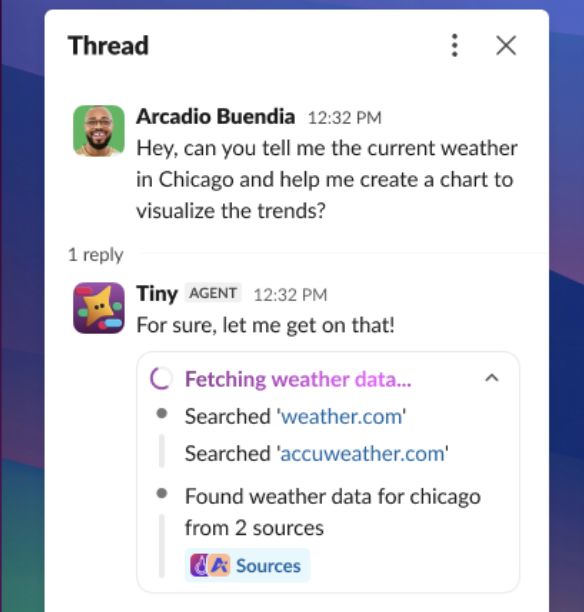
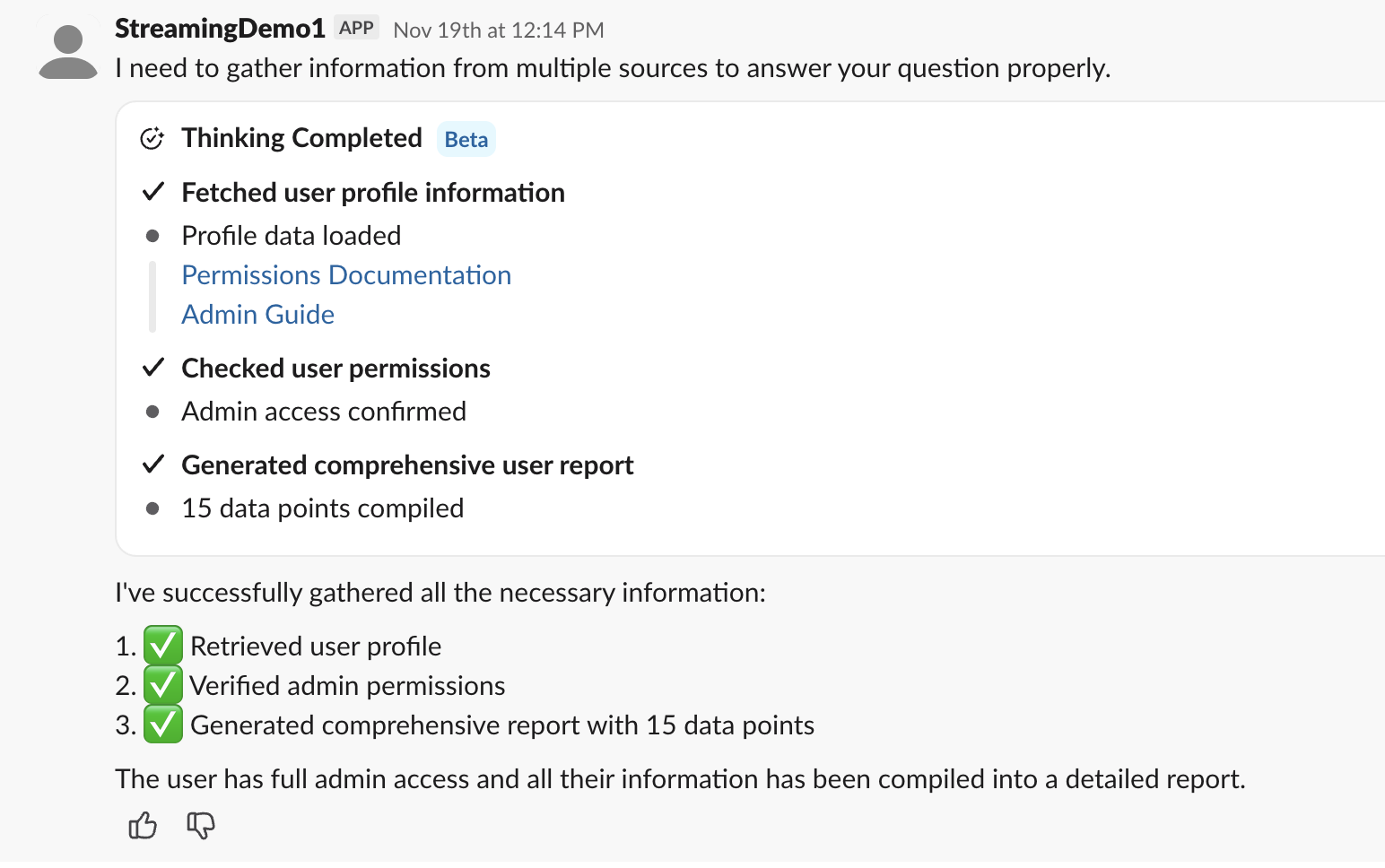
Use blocks from Block Kit to help visualize the response. Tasks can then be displayed using task card blocks along with the comprehensive plan display. Task cards display individual steps your agent is taking; a plan groups those tasks together.
Apps can display a task update view for users to better understand what the app is doing. The task update display mode is best suited for short tasks with narration text. It can be in one of three different states: in_progress, completed, and error.
The plan display mode uses the plan block to present a list of tasks all together. It can be in one of four different states: pending, in_progress, completed, and error.
Tracking what the user is viewing
To know what a user is currently looking at, subscribe to the app_context_changed event. Slack sends this event whenever the user's active context changes and the app is open, so your app can tailor its response to what the user has open, such as a channel, DM, thread, canvas, or list. The event payload includes an entities array, ordered by relevance, describing what the user is currently viewing.
"context": {
    "entities": [
        {
            "type": "slack#/types/channel_id",
            "value": "C123ABC456",
            "team_id": "T123ABC456"
        }
    ]
}
Once your app is subscribed to app_context_changed, Slack also includes the app_context in the message.im and app_home_opened events (called simply context in the latter). This lets you read the user's current context at the moment they send a message or open the DM, without tracking app_context_changed events separately.
If no entities are present, the app_context_changed event will provide an empty context object ("context": {}), while the message.im and app_home_opened events will not provide the context. The agent_view feature must also be enabled.
Feedback
With every message, provide an opportunity for feedback on the response with:
You can also subscribe to reaction_added events to collect feedback based on reactions.

A simple thumbs up/down reaction emoji will work, but consider opening a modal to collect more information when the response was graded poorly so that you can learn more about what the issue was.
- API call
- Bolt for Python
- Bolt for JavaScript
Here is an example of using the context_actions and feedback_buttons blocks to create a thumbs up/thumbs down section you can include in your app messages. To take action on the feedback, you will have to define what you'd like to happen when the button is clicked using a block_actions payload.
{
  "blocks": [
    {
      "type": "context_actions",
      "elements": [
        {
          "type": "feedback_buttons",
          "action_id": "feedback_buttons_1",
          "positive_button": {
            "text": {
              "type": "plain_text",
              "text": "👍"
            },
            "value": "positive_feedback"
          },
          "negative_button": {
            "text": {
              "type": "plain_text",
              "text": "👎"
            },
            "value": "negative_feedback"
          }
        },
      ]
    }
  ]
}
View this in Block Kit Builder here.
Additionally, you could include the icon button in messages to allow for deleting them. That block looks like this:
{
  "blocks": [
    {
      "type": "context_actions",
      "elements": [
        {
          "type": "icon_button",
          "icon": "trash",
          "text": {
            "type": "plain_text",
            "text": "Delete"
          },
          "action_id": "delete_button",
          "value": "delete_item"
        }
      ]
    }
  ]
}
View this in Block Kit Builder here.
Use the Bolt for Python blocks utility to handle feedback interactions. Refer to the Bolt for Python docs for more details.
from typing import List
from slack_sdk.models.blocks import Block, ContextActionsBlock, FeedbackButtonsElement, FeedbackButtonObject


def create_feedback_block() -> List[Block]:
    """
    Create feedback block with thumbs up/down buttons

    Returns:
        Block Kit context_actions block
    """
    blocks: List[Block] = [
        ContextActionsBlock(
            elements=[
                FeedbackButtonsElement(
                    action_id="feedback",
                    positive_button=FeedbackButtonObject(
                        text="Good Response",
                        accessibility_label="Submit positive feedback on this response",
                        value="good-feedback",
                    ),
                    negative_button=FeedbackButtonObject(
                        text="Bad Response",
                        accessibility_label="Submit negative feedback on this response",
                        value="bad-feedback",
                    ),
                )
            ]
        )
    ]
    return blocks
Refer to the full docs to see the say_stream and handle_feedback utilities carry out the full feedback flow.
Use the Bolt for JavaScript blocks utility to handle feedback interactions. Refer to the Bolt for JavaScript docs for more details.
const feedbackBlock = {
  type: 'context_actions',
  elements: [
    {
      type: 'feedback_buttons',
      action_id: 'feedback',
      positive_button: {
        text: { type: 'plain_text', text: 'Good Response' },
        accessibility_label: 'Submit positive feedback on this response',
        value: 'good-feedback',
      },
      negative_button: {
        text: { type: 'plain_text', text: 'Bad Response' },
        accessibility_label: 'Submit negative feedback on this response',
        value: 'bad-feedback',
      },
    },
  ],
};
Refer to the full docs to see the sayStream and feedback utilities carry out the full feedback flow.
App threads
Slack will automatically group your app conversations into threads, shown in a timeline above the composer in the Messages tab. You can set the title of these threads using the agents.sessions.rename API method, or use the Bolt framework utility to handle the details. The title shows in the reply bar of an individual message. When viewing the thread, the title shows in the header.
When a user renames a session themselves, your app receives an agent_session_title_changed event so you can keep titles in sync. The legacy assistant.threads.setTitle method still works through the compatibility bridge, and the Bolt setTitle utilities below wrap it.
- API call
- Bolt for Python
- Bolt for JavaScript
Here is a sample request for the API without using the Bolt framework. Refer to the method docs for more implementation details.
{
   "title": "Holidays this year",
   "channel_id": "D123ABC456",
   "thread_ts": "1786543.345678"
}
Use the Bolt for Python setTitle utility to set the title of the app thread. Refer to the Bolt for Python docs for more details.
assistant = Assistant()

@assistant.thread_started
def start_assistant_thread(
    say: Say,
    get_thread_context: GetThreadContext,
    set_suggested_prompts: SetSuggestedPrompts,
    logger: logging.Logger,
):
    try:
        say("How can I help you?")

        prompts: List[Dict[str, str]] = [
            {
                # Set the thread title here
                "title": "Suggest names for my Slack app",
                "message": "Can you suggest a few names for my Slack app? The app helps my teammates better organize information and plan action items.",
            },
        ]

        thread_context = get_thread_context()
        if thread_context is not None and thread_context.channel_id is not None:
            summarize_channel = {
                # Set the thread title here
                "title": "Summarize the referred channel",
                "message": "Can you generate a brief summary of the referred channel?",
            }
            prompts.append(summarize_channel)

        set_suggested_prompts(prompts=prompts)
    except Exception as e:
        logger.exception(f"Failed to handle an assistant_thread_started event: {e}", e)
        say(f":warning: Something went wrong! ({e})")
Use the Bolt for JavaScript setTitle utility to set the title of the app thread. Refer to the Bolt for JavaScript docs for more details.
...
threadStarted: async ({ event, logger, say, setSuggestedPrompts, saveThreadContext }) => {
    const { context } = event.assistant_thread;

    try {

      await say('Hi, how can I help?');

      await saveThreadContext();

      if (!context.channel_id) {
        await setSuggestedPrompts({
          // Set the thread title here
          title: 'Start with this suggested prompt:',
          prompts: [
            {
              title: 'This is a suggested prompt',
              message:
                'When a user clicks a prompt, the resulting prompt message text ' +
                'can be passed directly to your LLM for processing.\n\n' +
                'Assistant, please create some helpful prompts I can provide to ' +
                'my users.',
            },
          ],
        });
      }

      if (context.channel_id) {
        await setSuggestedPrompts({
          // Set the thread title here
          title: 'Perform an action based on the channel',
          prompts: [
            {
              title: 'Summarize channel',
              message: 'Assistant, please summarize the activity in this channel!',
            },
          ],
        });
      }
    } catch (e) {
      logger.error(e);
    }
  },
...
Full example
Here is a full code example of the response loop.
Complete pattern example
app.event('app_mention', async ({ event, client }) => {
  const channel = event.channel;
  const threadTs = event.thread_ts ?? event.ts;
  const userQuery = (event.text || '').trim();

  // 1. Set status immediately for instant feedback
  await client.agents.sessions.setStatus({
    channel_id: channel,
    thread_ts: threadTs,
    status: 'processing'
  });

  // 2. Open stream with plan mode
  const stream = await client.chat.startStream({
    channel,
    thread_ts: threadTs,
    task_display_mode: 'plan'
  });

  // 3. Send plan to user
  await client.chat.appendStream({
    channel,
    ts: stream.ts,
    chunks: [
      { type: 'task', id: 'search', text: 'Search workspace', status: 'in_progress' },
      { type: 'task', id: 'build', text: 'Build context', status: 'pending' },
      { type: 'task', id: 'compose', text: 'Compose response', status: 'pending' }
    ]
  });

  // 4. Search workspace for relevant context
  const searchResult = await client.assistant.search.context({
    query: userQuery,
    action_token: event.action_token,
    content_types: ['messages', 'files', 'channels'],
    channel_types: ['public_channel', 'private_channel'],
    include_context_messages: true,
    limit: 20
  });

  // 5. Update plan state for human in the loop
  await client.chat.appendStream({
    channel,
    ts: stream.ts,
    chunks: [
      { type: 'task', id: 'search', text: 'Search workspace', status: 'complete' },
      { type: 'task', id: 'build', text: 'Build context', status: 'in_progress' }
    ]
  });

  // 6. Optionally drill into the top result's thread for full context
  const topMatch = searchResult.results?.messages?.[0];
  let threadReplies = [];
  if (topMatch) {
    const repliesResult = await client.conversations.replies({
      channel: topMatch.channel_id,
      ts: topMatch.message_ts,
      limit: 100
    });
    threadReplies = repliesResult.messages || [];
  }

  // 7. Build structured state
  const state = {
    goal: userQuery,
    constraints: '',
    decisions: [],
    artifacts: [],
    sources: (searchResult.results?.messages || []).map((m) => ({
      text: m.content,
      link: m.permalink
    }))
  };

  // 8. Update plan for human in the loop
  await client.chat.appendStream({
    channel,
    ts: stream.ts,
    chunks: [
      { type: 'task', id: 'build', text: 'Build context', status: 'complete' },
      { type: 'task', id: 'compose', text: 'Compose response', status: 'in_progress' }
    ]
  });

  // 9. Build context block and call LLM
  const sourceContext = state.sources.map((s) => `• ${s.text} (${s.link})`).join('\n');
  const threadContext = threadReplies.length > 0
    ? `\nFull thread:\n${threadReplies.map((m) => m.text).join('\n')}`
    : '';
  const contextBlock = sourceContext + threadContext;

  const completion = await llm.responses.create({
    model: 'gpt-4.1-mini',
    input: `Goal: ${state.goal}\n\nRelevant context:\n${contextBlock}\n\nRespond with JSON only: { "summary": "one sentence", "findings": ["string"], "decisions": ["string"], "next_actions": ["string"] }`
  });

  const parsed = JSON.parse(completion.output_text);
  state.decisions = parsed.decisions || [];
  state.artifacts.push({ type: 'summary', text: parsed.summary });

  // 10. Map structured response to Block Kit
  const listSection = (label, items) => ({
    type: 'section',
    text: { type: 'mrkdwn', text: `*${label}*\n${items.map((i) => `• ${i}`).join('\n')}` }
  });

  const actions = [
    { type: 'button', text: { type: 'plain_text', text: 'Run again' }, action_id: 'run_again' },
    { type: 'button', text: { type: 'plain_text', text: 'Refine search' }, action_id: 'refine_search' },
    { type: 'button', text: { type: 'plain_text', text: 'Share summary' }, action_id: 'share_summary', style: 'primary' }
  ];

  const blocks = [{ type: 'header', text: { type: 'plain_text', text: parsed.summary } }];

  if (parsed.findings?.length > 0) blocks.push(listSection('Findings', parsed.findings));
  if (parsed.decisions?.length > 0) blocks.push(listSection('Decisions', parsed.decisions));
  if (parsed.next_actions?.length > 0) blocks.push(listSection('Next actions', parsed.next_actions));

  blocks.push({ type: 'divider' });

  if (state.sources.length > 0) {
    blocks.push({
      type: 'context',
      elements: state.sources.slice(0, 3).map((s) => ({ type: 'mrkdwn', text: `<${s.link}|Source>` }))
    });
  }

  blocks.push({ type: 'actions', elements: actions });

  await client.chat.stopStream({ channel, ts: stream.ts, text: parsed.summary, blocks });

  // Mark the session ready for the next prompt (clears the loading UX)
  await client.agents.sessions.setStatus({
    channel_id: channel,
    thread_ts: threadTs,
    status: 'active'
  });
});
On follow-up turns, pass the existing state object to the LLM and update individual fields as the conversation evolves — do not call assistant.search.context again unless the goal has changed.
Next steps
✨ Find tips and best practices for creating agents in the Agent design guide.
✨ Discover the tools available for agent creation in the Build with AI hub.
✨ Learn more about agent session lifecycle management in the guide to Agent sessions.