Admin approval for apps with MCP servers
The installation experience for users depends on whether the workspace requires admin approval for apps.
Without admin approval required
When admin approval is not required, workspace members can install the app directly. During installation, they see a consent screen that includes the app's requested permissions and any External MCP servers the app connects to.
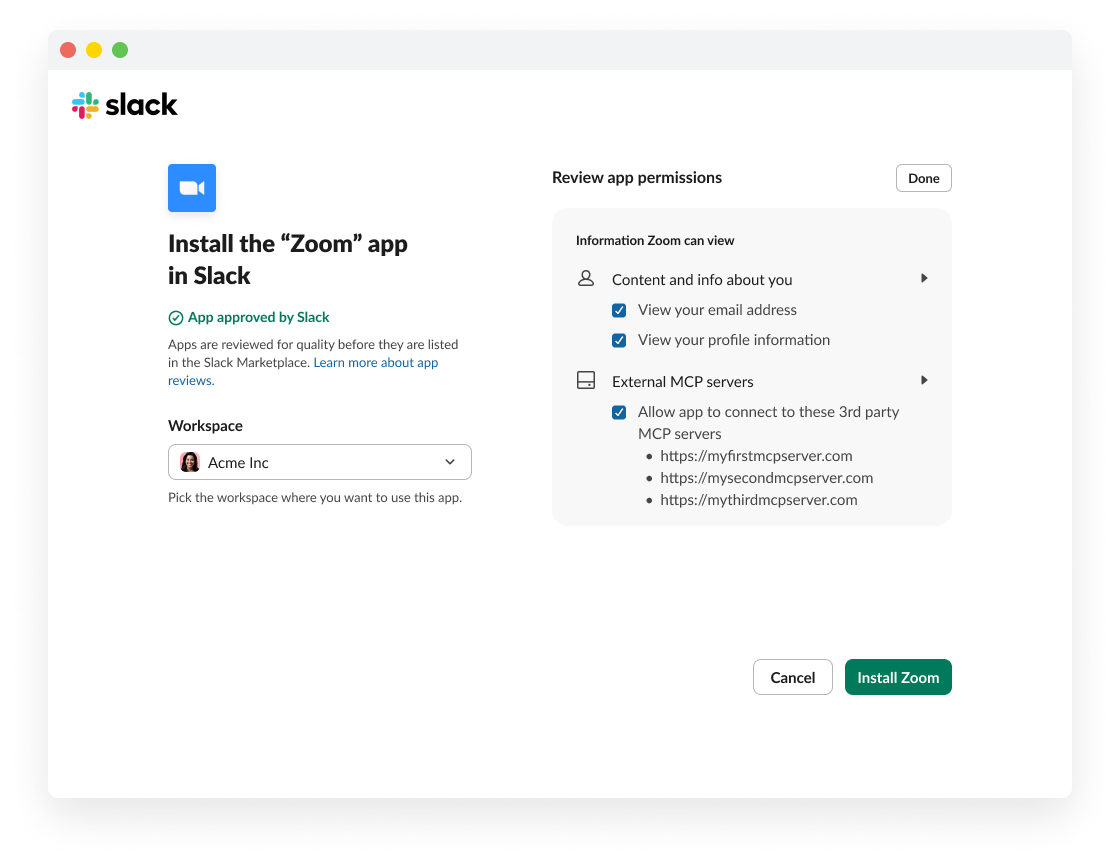
The workspace member reviews the permissions and MCP server URLs, then clicks Install to complete the process.
With admin approval required
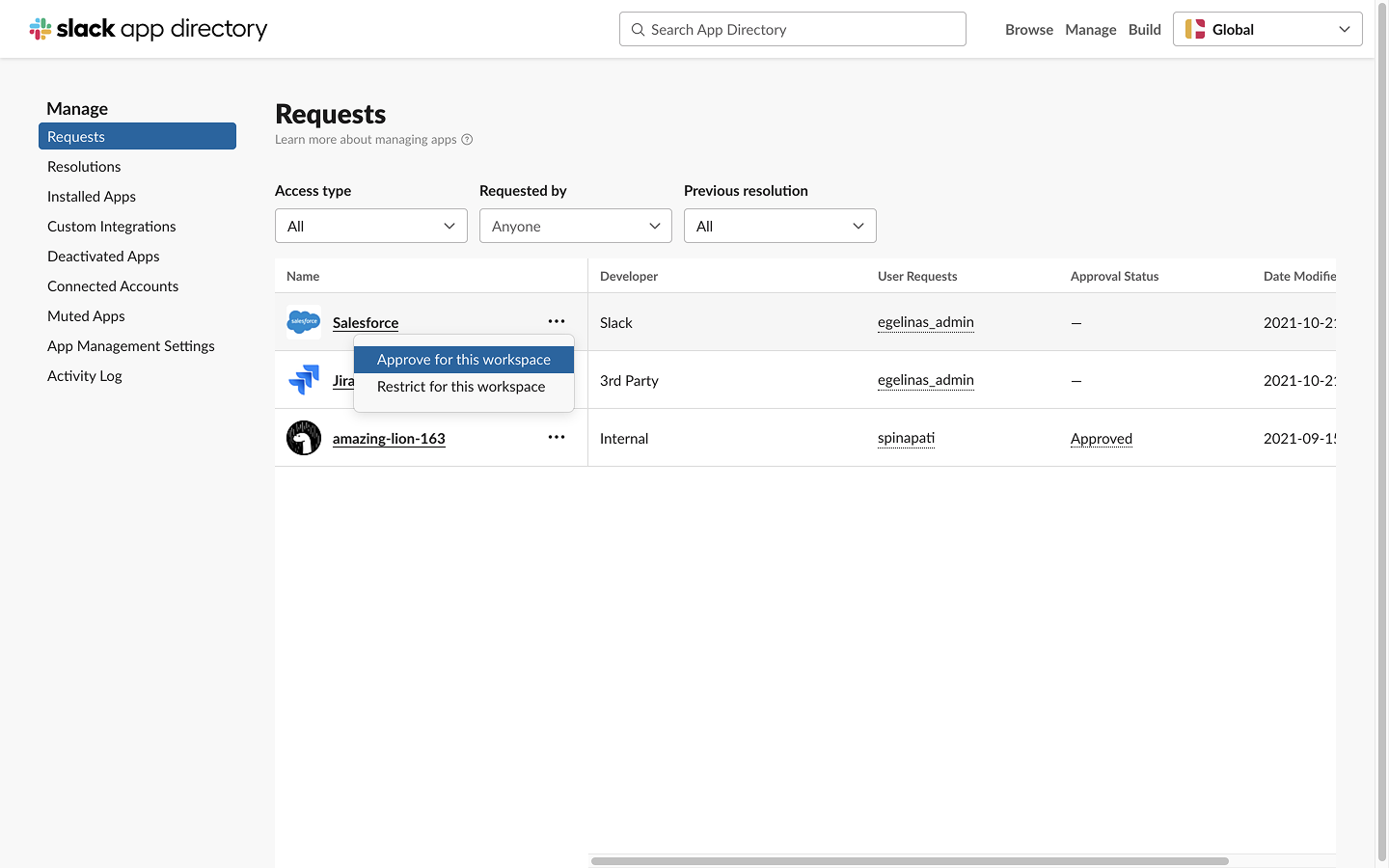
When the workspace requires admin approval, the app appears in the admin's Requests queue. Admins can approve or restrict the app from the Slack Marketplace management page.
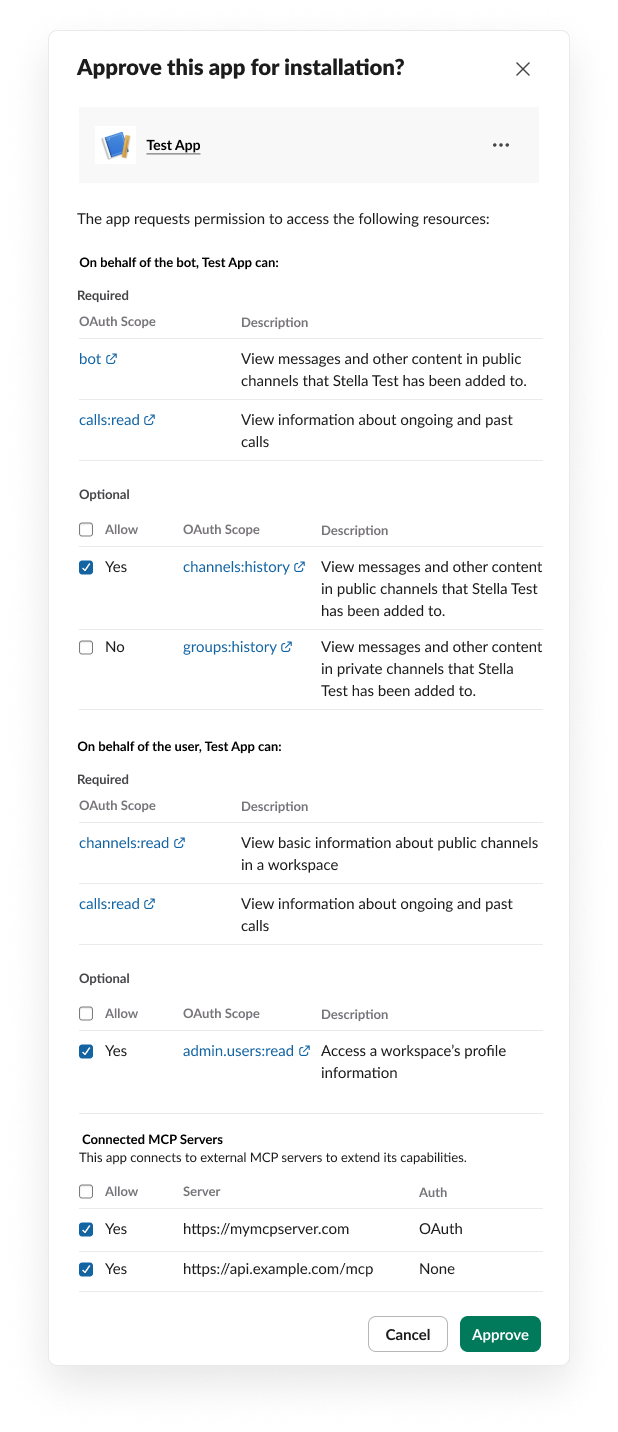
When approving, the admin sees the full list of requested scopes along with a Connected MCP Servers section. Each MCP server can be individually allowed or denied.
Reviewing installed MCP servers
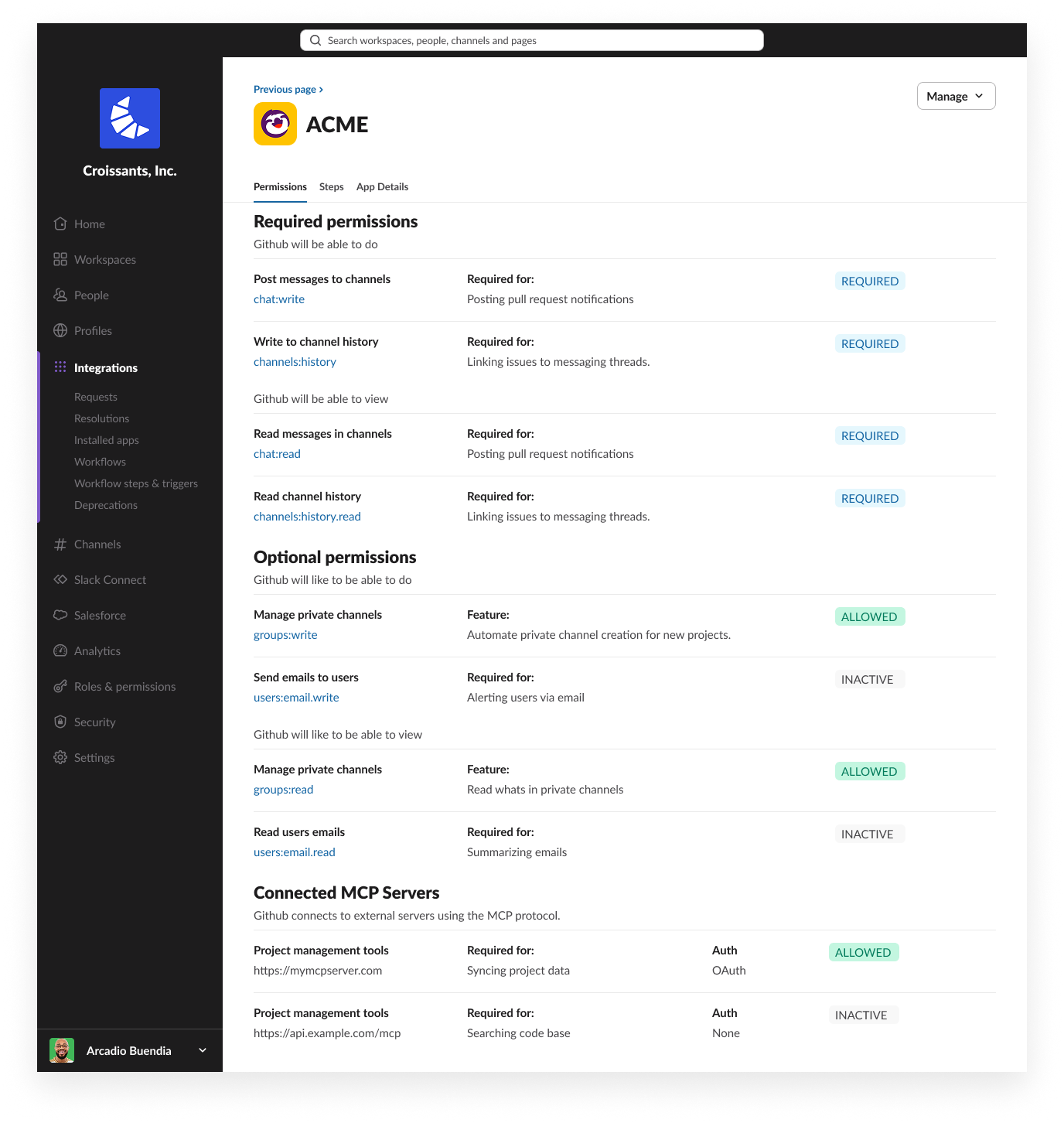
After an app is installed, admins can review its MCP server connections at any time from the admin dashboard under Integrations > Installed apps. The app's detail page shows a Connected MCP Servers section with the status of each server (ALLOWED or INACTIVE).
Admin access controls
Admins can control which MCP servers are available in their workspace, and who within that workspace can access them.
When an admin approves an app with the mcp:connect scope, access is granted to its declared servers. Re-approval is required if an MCP server from a different domain is added to the app. Only after admin approval will the MCP server appear in Slackbot for users to connect and use.
Admins can also configure who has access to the app, and those same permissions apply to its MCP servers automatically.