The Events API
The Events API is a streamlined way to build apps and bots that respond to activities in Slack. When you use the Events API, Slack calls you.
You have two event delivery options: you can either use Socket Mode or you can designate a public HTTP endpoint that your app listens on. Then, choose what events to subscribe to, and voilà: Slack sends the appropriate events to you. Learn more about the differences between Socket Mode and HTTP here.
All you need is a Slack app and a secure place for us to send your events. With the Events API, you can do the following:
- Tell Slack where to send your events and we'll deliver them with grace, security, and respect. We'll even retry when things don't work out. The events sent to you are directly tied to the OAuth permission scopes granted as users install your Slack app.
- Subscribe to only the events you want; don't worry about the ones you don't need.
- Subscribe your Slack apps to events related to channels and direct messages they are party to.
Overview
Many apps built using the Events API will follow the same abstract event-driven sequence:
- A user creates a circumstance that triggers an event subscription to your application.
- Your server receives a JSON payload describing that event.
- Your server acknowledges receipt of the event.
- Your business logic decides what to do about that event.
- Your server carries out that decision.
If your app is a bot listening to messages with specific trigger phrases, that event loop may play out something like the following:
- Members send messages in a channel the bot belongs to—the #random channel. The messages are about lots of things, but some of them contain today's secret word.
- Your server receives a
message.channelsevent, as per its bot subscription and membership in the #random channel. - Your server responds with a swift and confident
HTTP 200 OK. - Your bot is trained to listen for today's secret word, and having found it, decides to send a message to the channel, encouraging everyone to keep that word secret.
- Your server uses the
chat.postMessageAPI method to post that message to #random.
Using the Web API with the Events API empowers your app or bot to do much more than just listen and reply to messages.
Let's get started!
Preparing your app to use the Events API
If you're already familiar with HTTP and are comfortable maintaining your own server, handling the request and response cycle of the Events API should be familiar. If the world of web APIs is new to you, the Events API is a great next step after mastering incoming webhooks or the Web API.
Is the Events API right for your app?
Before starting, you may want to make a few early decisions about your application architecture and approach to consuming events. The Events API is best used in conjunction with other platform features.
One way to use the Events API is to set up one or more endpoints on your own servers to receive events atomically in near real-time instead of maintaining one or more long-lived connections for each workspace an application is connected to. Some developers use the Events API as a kind of redundancy for their existing WebSocket connections. Other developers use the Events API to receive information around the workspaces and users they are acting on behalf of to improve their slash commands, bot users, notifications, or other capabilities.
With app events, you can track app uninstallation, token revocation, Enterprise org migration, and more. Handle anything else your app does by using incoming webhooks and other write-based web API methods.
Permission model
The Events API leverages Slack's existing object-driven OAuth scope system to control access to events. For example, if your app has access to files through the files:read scope, you can choose to subscribe to any or none of the file-related events such as file_created and file_deleted.
You will only receive events that users who have authorized your app can "see" on their workspace (that is, if a user authorizes access to private channel history, you'll only see the activity in private channels they are a member of, not all private channels across the workspace).
Bot users may also subscribe to events on their own behalf. The bot scope requested when workspaces install your bot covers events access for the Events API.
Subscribing to event types
To begin working with the Events API, you'll need to create a Slack app if you haven't already. While managing your app in the app settings, find the Event Subscriptions setting and use the toggle to turn it on.

Before continuing on to choosing event subscriptions, you will need to choose to use either Socket Mode or an HTTP request URL. For more information on the differences between them, refer to Exploring HTTP vs Socket Mode.
To set up your app to use Socket Mode, refer to the Socket Mode guide. To set up your app to use HTTP request URLs, refer to the HTTP guide.
Choosing event subscriptions
After configuring and validating either Socket Mode or your request URL, it's time to subscribe to the event types you find fascinating, useful, or necessary.
The subscription manager is split into two sections:
- Workspace Events: these are the events that require a corresponding OAuth scope, and are perspectival to a member installing your application.
- Bot Events: subscribe to events on behalf of your application's bot user, no additional scopes beyond
botrequired. As with workspace events, you'll only receive events perspectival to your bot user.
Consult a specific event's documentation page for information on whether that event is supported for bot users.
Activating subscriptions
The Events API is backed by the same OAuth permission scoping system powering your Slack app.
If workspaces have already installed your application, your request URL will soon begin receiving your configured event subscriptions.
For any workspaces that have yet to install your application, you'll need to request the specific OAuth scopes corresponding to the event types you're subscribing to. If you're working on behalf of a bot user, you'll need your bot installed the typical way, using the bot OAuth scope.
Authorize users for your app through the standard OAuth flow. Be sure to include all of the necessary scopes for the events your app wants to receive. Consult the event reference docs for all of the available event types and corresponding OAuth scopes.
With all this due preparation out of the way, it's time to receive and handle all those event subscriptions.
Receiving events
Your request URL will receive a request for each event matching your subscriptions. One request, one event.
You may want to consider the number of workspaces you serve, the number of users on those workspaces, their volume of messages, and other activity to evaluate how many requests your request URL may receive and scale accordingly.
Events dispatched as JSON
When an event in your subscription occurs in an authorized user's account, we'll send an HTTP POST request to your request URL. The event will be in the Content-Type: application/json format:
{
    "type": "event_callback",
    "token": "XXYYZZ",
    "team_id": "T123ABC456",
    "api_app_id": "A123ABC456",
    "event": {
        "type": "name_of_event",
        "event_ts": "1234567890.123456",
        "user": "U123ABC456",
        ...
    },
    "event_context": "EC123ABC456",
    "event_id": "Ev123ABC456",
    "event_time": 1234567890,
    "authorizations": [
        {
            "enterprise_id": "E123ABC456",
            "team_id": "T123ABC456",
            "user_id": "U123ABC456",
            "is_bot": false,
            "is_enterprise_install": false,
        }
    ],
    "is_ext_shared_channel": false,
    "context_team_id": "T123ABC456",
    "context_enterprise_id": null
}
Callback field overview
Also referred to as the "outer event", or the JSON object containing the event that happened:
| Field | Type | Description |
|---|---|---|
type | String | This reflects the type of callback you're receiving. Typically, that is event_callback. You may encounter url_verification during the configuration process. The event field's "inner event" will also contain a type field indicating which event type lurks within (below). |
token | String | The deprecated mechanism for verifying requests from Slack. Instead of using the token, you should rely on using signed secrets to verify requests from Slack. |
team_id | String | The unique identifier for the workspace/team where this event occurred. Example: T461EG9ZZ |
api_app_id | String | The unique identifier for the application this event is intended for. Your application's ID can be found in the URL of the your application console. It tells you which app the event was dispatched to, and it's the right field to use when you need to identify your app in the payload. Example: A4ZFV49KK |
event | Event type | Contains the inner set of fields representing the event type that's happening. The event wrapper is an event envelope of sorts, and the event field represents the contents of that envelope. Learn more about the event wrapper, including its JSON schema. Examples below. |
event_context | String | An identifier for this specific event. This field can be used with the apps.event.authorizations.list API method to obtain a full list of installations of your app for which this event is visible. |
event_id | String | A unique identifier for this specific event, globally unique across all workspaces. |
event_time | Integer | The epoch timestamp in seconds indicating when this event was dispatched. |
authorizations | Object | An installation of your app. Installations are defined by a combination of the installing Enterprise org, workspace, and user (represented by enterprise_id, team_id, and user_id inside this field). Installations may not have all three defined. The authorizations property describes one of the installations that this event is visible to. You'll receive a single event for a piece of data intended for multiple users in a workspace, rather than a message per user. Use the apps.event.authorizations.list API method to retrieve all authorizations. |
is_ext_shared_channel | Boolean | Indicates whether the event occurred in an externally shared channel; i.e., a channel shared between two different Slack workspaces. |
context_enterprise_id | String | The enterprise org through which your app is receiving the event (i.e., where the app is installed). |
Event type structure
The structure of event types varies from type to type, depending on the kind of action or object type they represent. The Events API allows you to tolerate minor changes in event type and object type structures, and to expect additional fields you haven't encountered before or fields that are only conditionally present.
If you're already familiar with the legacy RTM API, you'll find that the inner event structure is identical to corresponding events, but are wrapped in a kind of event envelope in the callbacks we send to your event request URL:
| Field | Type | Description |
|---|---|---|
type | String | The specific name of the event described by its adjacent fields. This field is included with every inner event type. Examples: reaction_added, message.channels, team_join |
event_ts | String | The timestamp of the event. The combination of event_ts,team_id, user_id, or channel_id is intended to be unique. This field is included with every inner event type. Example: 1469470591.759709 |
user | String | The user ID belonging to the user that incited this action. Not included in all events as not all events are controlled by users. See the top-level callback object's authorizations.user_id if you need to calculate event visibility by user. Example: U061F7AUR |
ts | String | The timestamp of what the event describes, which may occur slightly prior to the event being dispatched as described by event_ts. The combination of ts, team_id, user_id, or channel_id is intended to be unique. Example: 1469470591.759709 |
item | String | Data specific to the underlying object type being described. Often you'll encounter abbreviated versions of full objects. For instance, when file objects are referenced, only the file's ID is presented. See each individual event type for more detail. |
authorizations.user_id field.For example, if a file was uploaded to a channel that two of your authorized users were party to, we would stream the file_uploaded event once and indicate one user ID in the authorizations array. Use the apps.event.authorizations.list API method to retrieve all authorizations.
Here's a full example of a dispatched event for the reaction_added event:
{
    "token": "z26uFbvR1xHJEdHE1OQiO6t8",
    "team_id": "T123ABC456",
    "api_app_id": "A123ABC456",
    "event": {
        "type": "reaction_added",
        "user": "U123ABC456",
        "item": {
            "type": "message",
            "channel": "C123ABC456",
            "ts": "1464196127.000002"
        },
        "reaction": "slightly_smiling_face",
        "item_user": "U222222222",
        "event_ts": "1465244570.336841"
    },
    "type": "event_callback",
    "authorizations": [
        {
            "enterprise_id": "E123ABC456",
            "team_id": "T123ABC456",
            "user_id": "U123ABC456",
            "is_bot": false
        }
    ],
    "event_id": "Ev123ABC456",
    "event_context": "EC123ABC456",
    "event_time": 1234567890
}
Responding to events
Your app should respond to the event request with an HTTP 2xx within three seconds. If it does not, we'll consider the event delivery attempt failed. After a failure, we'll retry three times, backing off exponentially. Some best practices are to:
- Maintain a response success rate of at least 5% of events per 60 minutes to prevent automatic disabling.
- Respond to events with an HTTP 200 OK as soon as you can.
- Avoid actually processing and reacting to events within the same process.
- Implement a queue to handle inbound events after they are received.
What you do with events depends on what your application or service does.
Maybe it'll trigger you to send a message using chat.postMessage. Maybe you'll update a leaderboard. Maybe you'll update a piece of data you're storing. Maybe you'll change the world or just decide to do nothing at all.
A reacji can be an easy entry point to an app. Take for example, this sample code for a reaction_added event. The listener code takes the message from which it was invoked and sends that message to an LLM, posting the answer in thread. These examples show Bolt for JavaScript and Bolt for Python.Click to expand code
app.event('reaction_added', async ({ event, say, client, logger }) => {
  try {

    // This code listens for the :robot_face: reacji
    if (event.reaction === 'robot_face') {

        const channelId = event.item.channel;
        const threadTs = event.item.ts;
        const defaultInstruction = 'You are an AI code assistant app who helps users with their coding questions. Any markdown content you display in Slack mrkdwn.';
        const { InferenceClient } = require('@huggingface/inference');
        const hfClient = new InferenceClient(process.env.HUGGINGFACE_API_KEY);

        const message = await client.conversations.history({
            channel: channelId,
            latest: threadTs,
            inclusive: true,
            limit: 1, // We only want the message that was reacted to
        });

        const messageText = message.messages[0].text;

        // Post a confirmation message in the thread
        const initialMessage = await say({
            text: `Hello, I'm a Code Assistant app working on your behalf! I'm asking AI your question: ${messageText}`,
            channel: channelId,
            thread_ts: threadTs, // This starts the thread if one doesn't exist
        });

        // Prepare the messages to send to the LLM
        const messages = [{ role: 'system', content: defaultInstruction }, {role: 'user', content: messageText}];

        // A Hugging Face client is used here, but this could be substituted for any LLM
        const llmResponse = await hfClient.chatCompletion({
            model: 'Qwen/QwQ-32B',
            messages,
            max_tokens: 2000,
        });

        // Get the timestamp of the message that was just sent
        const initialMessageTs = initialMessage.ts;

        // Post a second message in the same thread with the LLM's answer
        await say({
            text: llmResponse.choices[0].message.content,
            channel: channelId,
            thread_ts: initialMessageTs,
        });
    }

  } catch (error) {
    logger.error('Error handling reaction event:', error);
  }
});@app.event("reaction_added")
def handle_reaction_added_events(event, say, client, logger):
try:
# This code listens for the :robot_face: reaction
if event["reaction"] == "robot_face":
channel_id = event["item"]["channel"]
thread_ts = event["item"]["ts"]
# This client requires the import from huggingface_hub import InferenceClient
hf_client = InferenceClient(token=os.getenv("HUGGINGFACE_API_KEY"))
default_instruction = "You are an AI code assistant app who helps users with their coding questions. Any markdown content you display in Slack mrkdwn."
# Fetch the message that was reacted to
message_info = client.conversations_history(
channel=channel_id,
latest=thread_ts,
inclusive=True,
limit=1,
)
message_text = message_info["messages"][0]["text"]
# Post a confirmation message in the thread
initial_message = say(
text=f"Hello, I'm a Code Assistant app working on your behalf! I'm asking AI your question: {message_text}",
channel=channel_id,
thread_ts=thread_ts,
)
# Prepare the messages for the LLM
messages = [
{"role": "system", "content": default_instruction},
{"role": "user", "content": message_text}
]
# Use the Hugging Face client to get a response
llm_response = hf_client.chat_completion(
model="Qwen/QwQ-32B",
messages=messages,
max_tokens=2000,
)
# Get the timestamp of the message that was just sent
initial_message_ts = initial_message["ts"]
# Post a second message in the same thread with the LLM's answer
say(
text=llm_response.choices[0].message.content,
channel=channel_id,
thread_ts=initial_message_ts,
)
except Exception as e:
logger.error(f"Error handling reaction event: {e}")
Rate limiting
We don't want to flood your servers with events it can't handle.
Event deliveries currently max out at 30,000 per workspace/team per app per 60 minutes. If your app receives more than one workspace's 30,000 events in a 60 minute window, you'll receive app_rate_limited events describing the conditions every minute.
{
	"token": "Jhj5dZrVaK7ZwHHjRyZWjbDl",
	"type": "app_rate_limited",
	"team_id": "T123ABC456",
	"minute_rate_limited": 1518467820,
	"api_app_id": "A123ABC456"
}
app_rate_limited event fields
| Field | Type | Description |
|---|---|---|
token | String | This was once used to verify other events in the Events API, but is now deprecated in favor of using signed secrets. |
type | String | This specific event type, app_rate_limited. |
minute_rate_limited | Integer | A rounded epoch time value indicating the minute your application became rate limited for this workspace. 1518467820 is at 2018-02-12 20:37:00 UTC. |
team_id | String | Subscriptions between your app and the workspace with this ID are being rate limited. |
api_app_id | String | Your application's ID, especially useful if you have multiple applications working with the Events API. |
You'll receive these callbacks for each of the minutes your app is rate limited for that workspace.
Error handling
As Slack sends events to your request URL, we ask that you return an HTTP 200 OK for each event you successfully receive. You may respond with an HTTP 301 or HTTP 302 and we'll follow up to two redirects in our quest for you to provide us an HTTP 200 OK success code.
Respond with success conditions to at least 5% of the events delivered to your app or your app will risk being temporarily disabled. However, apps receiving less than 1,000 events per hour will not be automatically disabled.
Retries
We'll knock knock knock on your server's door, retrying a failed request up to 3 times in a gradually increasing timetable:
- The first retry will be sent nearly immediately.
- The second retry will be attempted after 1 minute.
- The third and final retry will be sent after 5 minutes.
With each retry attempt, you'll also be given a x-slack-retry-num HTTP header indicating the attempt number: 1, 2, or 3. Retries count against the failure limits mentioned below.
We'll tell you why we're retrying the request in the x-slack-retry-reason HTTP header. These possible values describe their inciting events:
http_timeout: Your server took longer than 3 seconds to respond to the previous event delivery attempt.too_many_redirects: We'll follow you down the rabbit hole of HTTP redirects only so far. If we encounter more than 2, we'll retry the request in hopes it won't be that many this time.connection_failed: We just couldn't seem to connect to your server. Maybe we couldn't find it in DNS or maybe your host is unreachable.ssl_error: We couldn't verify the veracity of your SSL certificate. Find tips on producing valid SSL certificates here.http_error: We encountered an HTTP status code that was not in the HTTP 200 OK range. Maybe the request was forbidden. Or you rate limited us. Or the document just could not be found. So we're trying again in case that's all rectified now.unknown_error: We didn't anticipate this condition arising, but prepared for it nonetheless. For some reason it didn't work; we don't know why yet.
Failure limits
If you're responding with errors, we won't keep sending events to your servers forever.
When your application enters any combination of these failure conditions for more than 95% of delivery attempts within 60 minutes, your application's event subscriptions will be temporarily disabled:
- We are unable to negotiate or validate your server's SSL certificate.
- We wait longer than 3 seconds to receive a valid response from your server.
- We encounter more than 2 HTTP redirects to follow.
- We receive any other response than an HTTP 200-series response (besides allowed redirects mentioned above).
We'll also send you, the Slack app's creator and owner, an email alerting you to the situation. You'll have the opportunity to re-enable deliveries when you're ready.
Turning retries off
If your server is having trouble handling our requests or you'd rather we not retry failed deliveries, provide an HTTP header in your responses indicating that you'd prefer no further attempts. Provide us this HTTP header and value as part of your non-200 OK response:
x-slack-no-retry: 1
By presenting this header, we'll understand it to mean you'd rather this specific event not be re-delivered. Other event deliveries will remain unaffected.
Resuming event deliveries
Once you've repaired your ability to handle events, re-enable subscriptions by visiting Slack app management, selecting your app, and following the prompts. You'll need to go to Live App Settings if your app is part of the Slack Marketplace.
Delayed events retry
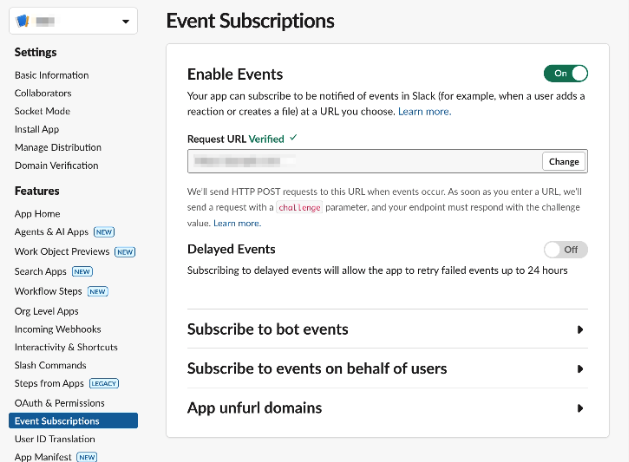
If your app fails to acknowledge the receipt of an event, Slack will retry three times over the course of a few minutes. Enable the Delayed Events feature for Slack to follow those three retries with hourly retries for 24 hours. The Events API is a best-effort system, and event delivery could be delayed during incidents. By default, we will not attempt to deliver an event that is more than two hours late. If the delayed events feature is enabled, we will attempt to deliver events regardless.
To enable this setting, navigate to app settings, select Event Subscriptions in the left sidebar, then toggle On the Delayed Events option.
Change management
Inevitably, the status of your subscriptions will change. New workspaces will sign up for your application. Installing users may leave a workspace. Maybe you make some tweaks to your subscriptions or incite users to request a different set of OAuth scopes.
Beyond your app being disabled, there are a few different types of changes that will affect which events your app is receiving.
App installation
When a user installs your app, you'll immediately begin receiving events for them based on your subscription.
Your application's granted OAuth scopes dictate which events in your subscription you receive.
If you've configured your subscription to receive reaction_added, reaction_removed, and file_created events, you won't receive all three unless you request the reactions:read and files:read scopes from the user. For example, If you'd only requested files:read, you'll only receive file_created events and not reaction_added or reaction_removed.
App revocation
If a user uninstalls your app (or the tokens issued to your app are revoked), events for that user will immediately stop being sent to your app.
Modifying events in your subscription
If you modify your subscription through the application management interface, the modifications will immediately take effect.
Depending on the modification, the event types, and OAuth scopes you've been requesting from users, a few different things can happen:
- Adding event subscriptions you already have scopes for: For example, you've been requesting
files:readfrom users and decide to add thefile_createdevent. Because you already have access to this resource (files), you'll begin receivingfile_createdevents as soon as you update your subscription. - Adding event subscriptions you aren't yet scoped for: For example, you've been requesting
channels:readfrom users and decide to add thefile_createdevent. Because you don't have access to this resource (files), you won't receivefile_createdevents immediately. You must send your existing users through the OAuth flow again, requesting thefiles:readscope. You'll begin to receivefile_createdevents for each user after they authorizefiles:readfor your app. - Removing event subscriptions, regardless of granted scopes: Events will immediately stop being sent for all users who have installed your app. Their OAuth scopes and authorizations will not be affected. If you weren't granted the permission scopes for the removed event subscription, then nothing really changes. You weren't receiving those events anyway and you won't be receiving them now either.
Presence
Bot users using the Events API exclusively must toggle their presence status. To toggle your bot user's presence when connected exclusively to the Events API, visit your app settings and navigate to the App Home tab.
Learn more about the nuances of bot user presence.
Event types compatible with the Events API
Browse all available events here.
Monitoring your app's lifecycle with app events
Your application has a life of its own. You build it, cultivate it, maintain it, and improve it. But still, stuff happens to your app in the wild. Tokens get revoked, workspaces accidentally uninstall it, and sometimes teams grow up and become part of a massive Enterprise organization.
Sophisticated apps want to know what's happening, to situationally respond, tidy up data messes, pause and resume activity, or to help you contemplate the many-folded nuances of building invaluable social software. Your app is interesting, wouldn't you like to subscribe to its newsletter?
Subscriptions to app events require no special OAuth scopes; just subscribe to the events you're interested in and you'll receive them as appropriate for each workspace your app is installed on.